






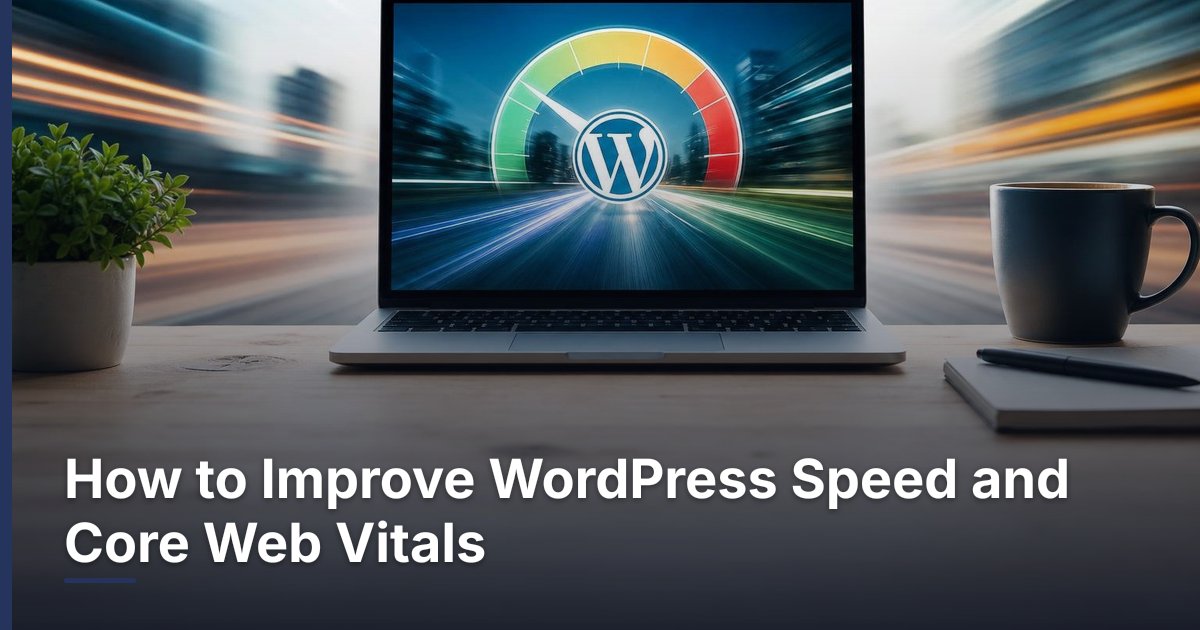
How to Improve WordPress Speed and Core Web Vitals
Prepared 2026-11-11
To improve WordPress speed and Core Web Vitals, begin by testing representative pages, then fix the biggest bottlenecks in the order visitors experience them: server response and caching, above-the-fold content, images and fonts, JavaScript, and layout stability. Avoid chasing a single score. The practical goal is a site that loads and responds predictably while preserving the forms, ecommerce tools, analytics, and content that support your business.
What Core Web Vitals mean for a WordPress site
Core Web Vitals are user-experience measurements associated with how quickly a page’s main content becomes visible, how quickly the page responds to interaction, and whether the layout stays stable as it loads. For a business owner, they are a useful diagnostic lens rather than a design brief. A page can have a polished appearance yet still feel frustrating if the hero section arrives late, a button responds slowly, or content shifts just as someone tries to use it.
WordPress performance is rarely controlled by one setting. It reflects the combined effect of hosting, server configuration, theme code, page-builder output, plugins, images, fonts, embedded media, analytics and advertising tags, consent tools, and the visitor’s device and connection. That is why adding several “speed” plugins without a plan can create conflicts or hide the original problem.
| Experience area | What a visitor may experience | Typical WordPress contributors |
|---|---|---|
| Visible loading | The page’s main content appears later than expected | Large hero media, slow server response, render-blocking files, heavy page templates |
| Interaction | A menu, form, filter, or button feels delayed | Long-running JavaScript, third-party scripts, complex widgets, overloaded pages |
| Visual stability | Content moves after the page seems ready | Media without reserved space, embeds, banners, delayed font loading, dynamic components |
Scores and field measurements can vary by page, device, location, cache state, and visitor conditions. Use them to locate patterns and verify improvement, but do not treat one test result as a guarantee of every visitor’s experience or as proof that the work is complete.
Establish a useful performance baseline
Do not test only the homepage. Select a small group of pages that represent how prospects and customers use the site: the homepage, a primary service page, a popular article or resource, a campaign landing page, and—if relevant—a product, category, cart, or checkout page. Each can load a different set of templates, assets, and integrations.
Document the page context before you optimize
- Test a logged-out visitor view so you are not measuring the faster administrative experience.
- Use a consistent test method for before-and-after comparisons, and note whether caches were cleared or warmed.
- Record the URL, device view, date, primary issue, changes made, and outcome.
- Identify the largest visible element near the top of each page, especially on mobile.
- Note every third-party dependency on the page, such as chat, video, maps, scheduling, social embeds, advertising tags, or analytics tools.
- Keep a rollback path: a full backup and a staging environment are preferable before changing themes, plugins, or site-wide optimization settings.
A baseline turns optimization into a controlled process. If an update makes a page faster but prevents a form from submitting or removes important tracking, you have enough context to isolate the cause and decide whether the trade-off is acceptable.
Improve what visitors see first
The upper portion of the page deserves early attention because it shapes the initial impression. On many WordPress websites, the largest visible item is a hero image, slider, background video, product image, or large heading area. Start by asking whether that element is necessary, whether it is delivered at an appropriate size, and whether the page must load every surrounding feature before showing it.
Make image handling deliberate
Upload images at dimensions appropriate to their displayed space instead of relying on a browser to shrink an oversized original. Use an image format and compression approach appropriate for the image’s role, and avoid loading decorative images that add little meaning or conversion value. A full-width visual may be justified on a key brand page; a large background image repeated across every template may not be.
Ensure the page reserves space for images and embedded content. When an image, video, review widget, map, banner, or form loads without predetermined space, lower content can move. That movement can interrupt reading and cause accidental clicks.
Review fonts and above-the-fold design choices
Custom fonts can support a distinct brand, but each family, weight, and style adds an asset to load. Keep only the styles the design truly uses, avoid loading fonts that are not visible on the page, and check how text behaves while fonts are loading. Also review animation, carousels, autoplay video, and decorative effects: simplify them when they distract from or delay the primary message and call to action.
Reduce unnecessary scripts, plugins, and third-party tools
Many WordPress speed problems are not caused by WordPress itself. They come from accumulated functionality: a page builder module used once, a plugin left active after a campaign, multiple tracking containers, a chat widget, social feeds, video embeds, popup software, booking tools, and marketing tags. Every tool may have a business purpose, but each should earn its place on the pages where it loads.
| Feature type | Questions to ask | Possible action |
|---|---|---|
| Plugin or page-builder module | Is it active, necessary, maintained, and used on pages where it loads? | Remove inactive or duplicate functionality; limit use to the pages that need it. |
| Third-party script | Does it directly support a visitor need, measurement requirement, or revenue workflow? | Keep it, delay it, conditionally load it, or replace it after testing the impact. |
| Embed | Can the visitor choose to load it instead of loading it automatically? | Use a lighter presentation or a click-to-load approach where appropriate. |
| Tracking tag | Is it still required and configured once? | Audit ownership and duplication; coordinate changes with marketing and analytics stakeholders. |
| Visual effect | Does it improve understanding or merely decorate the page? | Simplify or remove it when it delays content or creates instability. |
Do not remove plugins based only on plugin count. A small number of poorly configured or heavyweight features can create more work than a larger set of well-maintained tools. Review the front-end assets, functionality, update status, overlap with other plugins, and importance to operations. In ecommerce or lead-generation environments, test with real workflows rather than assuming an optimization setting is harmless.
- Inventory active plugins, theme extensions, tag-manager entries, embedded services, and page-builder add-ons.
- Map each item to a business owner and a visitor or operational purpose.
- Find duplicates, expired campaigns, inactive features, and tools loaded globally without a clear need.
- Make one controlled change at a time in staging when practical.
- Retest the affected pages and complete the relevant form, booking, search, cart, or checkout journey.
- Publish only after the business function and visitor experience both pass review.
Use caching and hosting as part of the solution
Caching can reduce repeated work by serving prepared versions of content where that is appropriate. However, a cache does not correct oversized media, unnecessary scripts, unstable layout, or a poorly structured page. It also needs careful treatment around dynamic content such as logged-in areas, cart and checkout pages, customer portals, personalized content, and forms.
Hosting should be evaluated in the context of the site’s actual workload. A simple brochure site, a content-heavy publication, and a WooCommerce store do not have the same demands. When a site remains slow after front-end cleanup, investigate server response patterns, resource limits, database health, WordPress and PHP compatibility, cache configuration, traffic spikes, and background tasks with the hosting provider or qualified technical team.
- Confirm which cache layers are already active before installing another caching tool.
- Exclude or carefully test pages that must show current, visitor-specific, or transaction-related information.
- Clear or refresh caches after deploying template, style, script, product, or content changes.
- Use a content delivery approach only when it fits the audience, site architecture, and operational setup.
- Keep WordPress core, themes, plugins, and server software on a managed update plan, with compatibility testing before significant changes.
Protect conversion paths while improving performance
A performance project should support business outcomes, not create a faster broken website. Before release, test the actions that matter: phone links, contact forms, appointment scheduling, quote requests, downloadable resources, ecommerce add-to-cart and checkout behavior, customer login, and confirmation messages. Also confirm that consent tools, analytics, advertising tags, and CRM or email integrations still operate as intended.
For example, a hypothetical service business might delay a nonessential social feed on its homepage while keeping its primary inquiry form and scheduling tool available. A hypothetical online store might optimize category and product images while treating cart, checkout, inventory, payment, and shipping integrations as high-risk areas requiring fuller regression testing. The right solution depends on the page’s job and the systems behind it.
Common mistakes to avoid
- Optimizing only a score while ignoring the pages that generate inquiries or sales.
- Installing multiple optimization plugins that overlap or conflict.
- Applying aggressive script delay settings without testing menus, forms, tracking, and ecommerce behavior.
- Removing tracking or consent functionality without coordination with the people who rely on the data.
- Changing a production theme, cache, or plugin configuration without a backup and rollback plan.
- Treating a one-time cleanup as permanent rather than monitoring performance after content and technology changes.
Create an ongoing WordPress performance process
Performance work is most sustainable when it becomes part of normal website operations. Give content editors a simple image-upload standard. Ask campaign owners to justify new scripts and embeds. Review new plugins before activation. Include a speed check in redesign, landing-page, and ecommerce release checklists. These habits help prevent the gradual buildup of unnecessary weight and complexity.
If your team lacks the time or technical context to diagnose the interaction between WordPress, plugins, hosting, analytics, and business systems, an outside review can provide a prioritized plan. DLR Vortex Solutions can help businesses evaluate WordPress performance alongside website design, integrations, lead flows, ecommerce requirements, and ongoing digital infrastructure. Schedule a consultation today!
Frequently asked questions
What are Core Web Vitals in plain English?
They are a set of user-experience measurements that help describe whether a page’s important content appears promptly, interactions respond without noticeable delay, and the layout remains stable during loading. They are best used to identify and prioritize visitor-experience problems rather than as a single pass-or-fail definition of website quality.
Will a caching plugin fix every WordPress speed problem?
No. Caching can help reduce repeated processing in suitable situations, but it does not automatically fix oversized images, heavy scripts, layout shifts, unnecessary page-builder elements, or a server and configuration mismatch. It also needs careful testing on dynamic and transaction-related pages.
Should I deactivate plugins to make WordPress faster?
Remove plugins that are inactive, duplicated, unnecessary, or no longer maintained after taking a backup and confirming their role. Do not judge solely by plugin count. Review each tool’s front-end impact, overlap, configuration, and business purpose, then test the affected workflows after changes.
Why is my WordPress site fast for me but slow for visitors?
Administrators may view a different logged-in experience, while visitors encounter cache behavior, device constraints, connection differences, third-party scripts, and page assets that vary by template. Test logged-out visitor views on representative pages and use a consistent method for comparisons.
Can image optimization improve Core Web Vitals?
It can help when large or poorly sized images delay the page’s visible content or cause layout movement. Use image dimensions appropriate to the display area, avoid unnecessary decorative media, and reserve space for images and embeds so content does not shift as assets load.
What should I test after performance changes?
Test the specific pages changed plus high-value business journeys: navigation, mobile layouts, contact and lead forms, booking, search, login, downloads, analytics, consent tools, and—where applicable—product selection, cart, checkout, payment, shipping, and confirmation behavior.
Related reading
Schedule a consultation today!
Recent Posts


November 20, 2026
Ecommerce Product Page SEO: A Practical Optimization Checklist

November 19, 2026
How to Reduce Cart Abandonment on a WooCommerce Store
Related Articles
Technical SEO Audit Guide: How to Find and Prioritize Website Problems
Warning: Undefined variable $taxonomy in /home/u765721910/websites/azJno66uV/public_html/wp-content/themes/bw-digiflow/bzotech-templates/posts/grid/grid-style2.php on line 50



Leave a comment